How to Block Website Ads on iPhone (uBlock Origin Lite, AdGuard)
How to get rid of website ads on iPhone. Use popular desktop ad-blocking extensions on iPhone, Safari content blockers, or, with no app, Hide Distracting Items and Reader.
Posted
Every site you open is full of ads, and you can't see what you came to read. Here's how to cut down website ads on iPhone.
The short answer
| What you want | Method | Effort | App |
|---|---|---|---|
| The same ad blocker as your computer | Method 1: Ad-blocking extensions | Easy | Yes |
| Block ads in Safari | Method 2: Content blockers | Easy | Yes |
| Hide annoying ads, no app | Method 3: Hide Distracting Items | One at a time | No |
| Just read the article | Method 4: Reader | Easy | No |
Method 1: Use popular desktop ad blockers on iPhone
In Chrome on a computer, extensions like uBlock Origin Lite and AdGuard block ads. The Chrome app on iPhone can't add extensions, but oXBrowser from shion.industries can, straight from the Chrome Web Store.
- Open the Chrome Web Store in oXBrowser and find
uBlock Origin LiteorAdGuard - Tap
Add to oXBrowser - Open a site, and the ads don't load
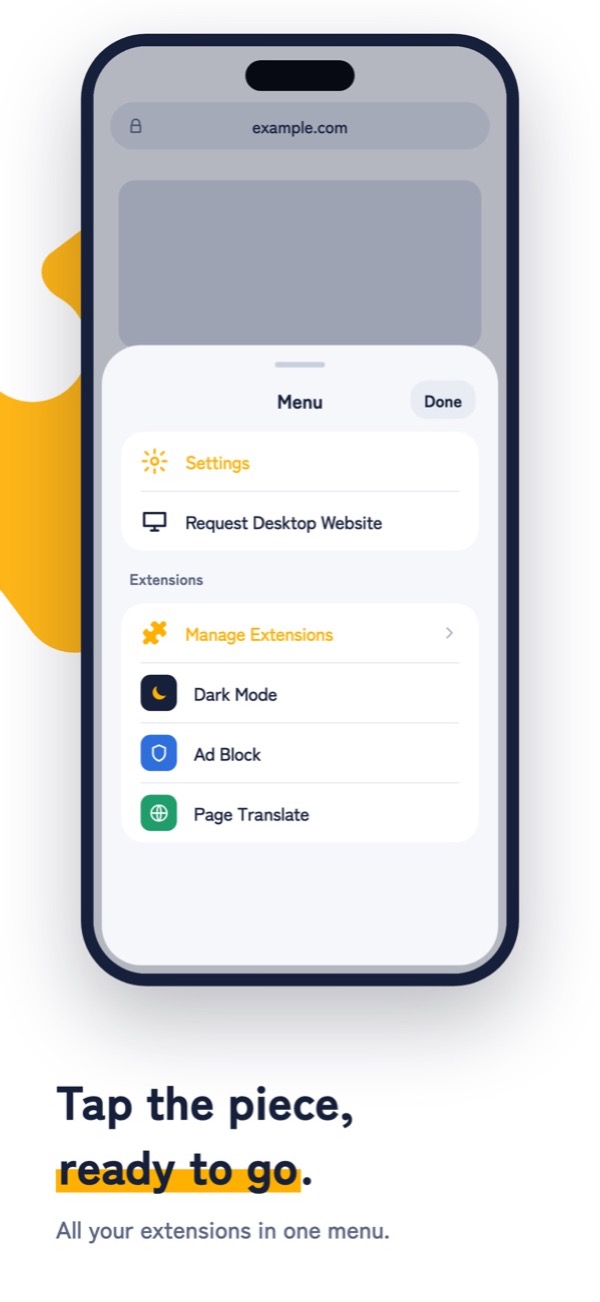
- We checked that both uBlock Origin Lite and AdGuard block ads in oXBrowser.
- If a site breaks with ads blocked, turn the extension off for just that site.
- Free. But the free version shows oXBrowser's own ad at the bottom of the screen. That's not a website ad, so extensions can't remove it (the paid Pro does).
Method 2: In Safari, add a content blocker
Safari has "content blockers" for blocking ads. Install an ad-blocking app from the App Store, then tap these in order to turn it on.
- 1Settings
- 2Apps
- 3Safari
- 4Extensions
On iOS 17 and earlier, skip Apps: go Settings → Safari.
There are free and paid ad blockers on the App Store. Even with the same name as a desktop extension, the iPhone version is a separate app.
Method 3: No app? Hide Distracting Items
In Safari on iOS 18 and later, you can pick parts of a page to hide yourself.
- Open a page in Safari and tap the button at the left of the address bar
- Tap
Hide Distracting Items - Tap the ad you want to hide, then tap
Hide
Next time you open the same site, it stays hidden. But if the ad changes, it may come back. It doesn't block ads in general, so it's best for hiding the most annoying ones.
Method 4: Just want the article? Use Reader
Switch to Safari's Reader and you get only the article's text and photos, with no ads.
- Open an article in Safari and tap the button at the left of the address bar
- Tap
Show Reader
Reader only works on article pages, like news and blogs.
FAQ
Is it OK to block ads?
You're free to block ads on your own iPhone. But many free sites run on ad money. For sites you want to support, you can turn the extension off.
Does it remove YouTube ads too?
YouTube ads work differently from website ads. Extensions may not remove them.