How to Make Every Website Dark on iPhone (Dark Reader)
Even with iPhone in Dark Mode, some websites stay white. Here's how to make every site dark with Dark Reader, plus Smart Invert and Reader that need no app.
Posted
Your iPhone is in Dark Mode, but you open a website and it's blinding white. Here's how to see every site in dark colors.
Whether a site supports Dark Mode depends on the site. Sites that don't stay white even when your iPhone is dark.
The short answer
| What you want | Method | Effort | App |
|---|---|---|---|
| Every site, nicely dark | Method 1: Dark Reader | Easy | Yes |
| Just make it dark, no app | Method 2: Smart Invert | Easy | No |
| Read articles in dark | Method 3: Reader | Easy | No |
Method 1: Make every site dark with Dark Reader (the nicest)
Dark Reader is a popular Chrome extension on computers. It recalculates colors to darken even sites that don't support Dark Mode.
Safari and the Chrome app on iPhone can't add it. oXBrowser from shion.industries can, straight from the Chrome Web Store.
- Open the Chrome Web Store in oXBrowser and find
Dark Reader - Tap
Add to oXBrowser - Open any site, and it shows up dark
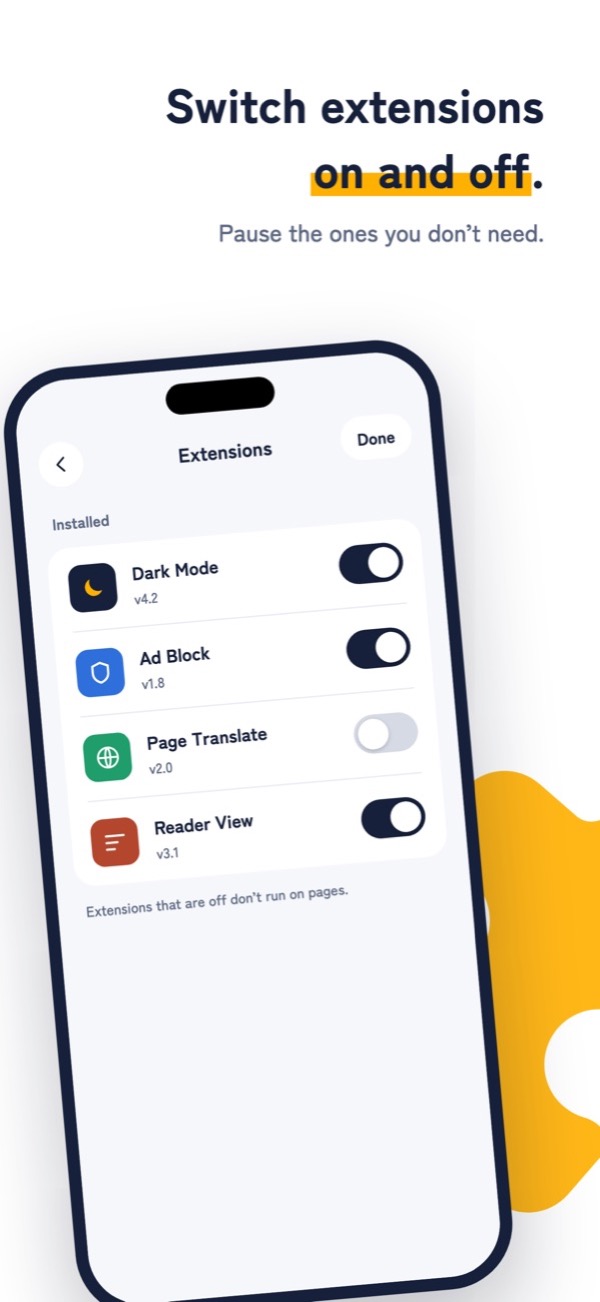
- Open Dark Reader from the puzzle-piece button at the bottom right to change brightness and contrast.
- Want a site to stay bright? Turn Dark Reader off for just that site.
- Free (with ads, up to 3 extensions). Requires iOS 18.4 or later.
Method 2: No app? Smart Invert
iPhone's Smart Invert flips the colors on screen to make it dark.
- 1Settings
- 2Accessibility
- 3Display & Text Size
- 4Smart Invert
It tries not to flip photos and videos, but on some sites, images and icons can look strange. It also flips your whole iPhone, so apps that already support Dark Mode turn bright. It's best to turn it on only when you need it.
Method 3: For articles, Safari's Reader
For news and blog articles, Safari's Reader shows just the text on a dark background.
- Open an article in Safari and tap the button at the left of the address bar
- Tap
Show Reader - Tap the button again and set the background to black
Reader only works on article pages. It won't work on shopping sites or social media.
FAQ
Does Dark Reader slow pages down?
Recalculating colors takes a tiny bit of time. If a site feels slow, turn Dark Reader off for just that site.
How can I switch Smart Invert quickly?
In Settings, go to Accessibility → Accessibility Shortcut and choose Smart Invert. Then triple-click the side button to switch it.