How to Remove Location from iPhone Photos (Before You Share)
iPhone photos can carry the place they were taken. Here's how to strip location just when sharing, remove it from the photo, stop saving it in future photos, and remove it with an app so you can check what's left.
Posted
Photos taken on iPhone can record where they were taken. Share one as-is or post it online, and people might figure out where you live or work. Here's how to remove it first.
The short answer
| What you want | Method | Effort | App |
|---|---|---|---|
| Remove it just when sharing | Method 1: Share options | Easy | No |
| Remove it from the photo | Method 2: The photo's info | Easy | No |
| Never save it in new photos | Method 3: Location settings | Easy | No |
| See what's in there, then remove it | Method 4: An app | Easy | Yes |
What's hidden in a photo
Besides the picture, a photo holds info like the date and time, the camera model, and the place (this is called Exif). If your iPhone camera can use location, the latitude and longitude go in too.
Many services, like most social networks, strip location when you upload. But email, AirDrop and sending as a file can pass it along as-is.
Method 1: Turn off location when sharing
In Photos, select the photos you want to send, then tap these in order.
- 1Share button (bottom left)
- 2Options (top)
- 3Location off
Now location is removed only when you share. The photo in your library keeps it.
On the same screen, turn off All Photos Data to also remove the date, time and other info.
Method 2: Remove location from the photo
Open the photo in Photos and swipe up (or tap ⓘ at the bottom). Then tap these in order.
- 1"Adjust" under the map
- 2No Location
The location is removed from the photo in your library. You can also select several photos and use Adjust Location in the menu to remove it from all of them.
Method 3: Don't save location in new photos
Open the Settings app and tap these in order.
- 1Settings
- 2Privacy & Security
- 3Location Services
- 4Camera
- 5Never
New photos won't have a location. You also won't be able to find photos by place on the map in Photos.
Method 4: Remove it with an app and check that it's gone
With Methods 1 and 2, you can't see what else is left in the photo. oConvert from shion.industries has Remove location, which shows you a list of exactly what it removed.
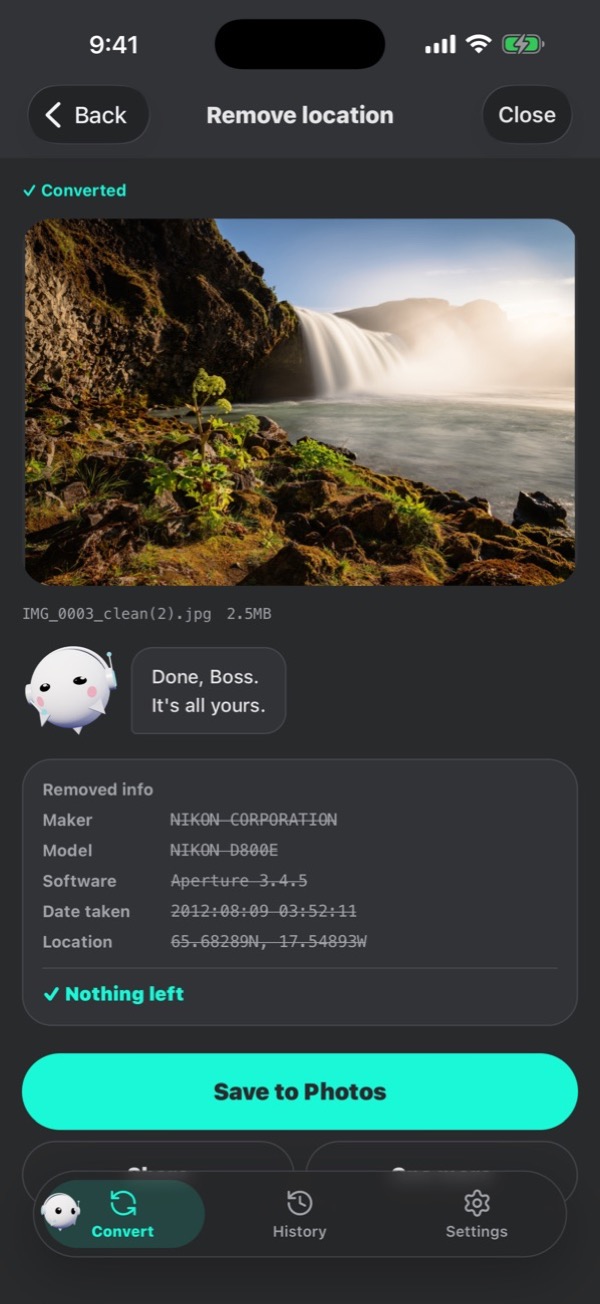
- It removes not just the place but also the model, date taken and more.
- Everything happens on your iPhone. Your photos are never sent anywhere.
- Free, no sign-up (with ads).
FAQ
Do screenshots have location?
Screenshots don't record where they were taken. But if a map or address is on screen, that can give it away.
Does removing location lower the quality?
Methods 1 to 3 don't touch the picture itself, so the quality doesn't change.