How to Convert HEIC to JPG on iPhone (With and Without an App)
iPhone photos saved as HEIC won't open or upload? Here's how to turn photos you've already taken into JPG with an app or Shortcuts, how to shoot JPG from the start, and how to get JPG when you copy photos to a computer.
Posted
You try to put an iPhone photo on your computer or a website, and it's in some format called "HEIC" that won't open. Here's how to fix it, with an app and without one.
The short answer
| What you want | Method | Effort | App |
|---|---|---|---|
| Photos you already took, as JPG | Method 1: A converter app | Easy | Yes |
| Photos you already took, no app | Method 2: Shortcuts | A little, once | No |
| Future photos as JPG | Method 3: Camera settings | Easy | No |
| JPG when copying to a computer | Method 4: Photos settings | Easy | No |
What is HEIC?
HEIC is the format iPhone uses to save photos by default. It looks as good as JPG but takes up less space.
Not everything supports it yet, though. Windows PCs can't open it out of the box, and some websites and apps won't accept it. Converting to JPG usually fixes that.
Method 1: Convert in batches with an app (the easiest)
For photos you've already taken, a converter app is the quickest way.
With oConvert from shion.industries, tap Convert, pick your photos, and HEIC becomes JPG.
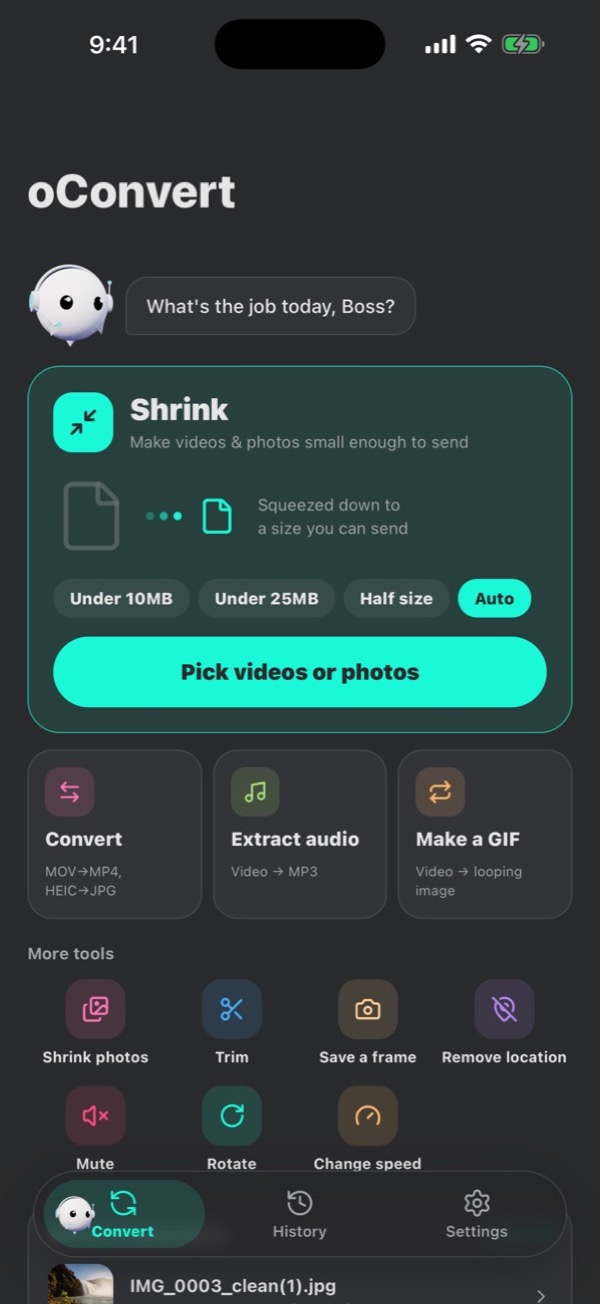
- Everything is converted on your iPhone. Your photos are never sent anywhere.
- Free, no sign-up (with ads).
- Convert several photos at once (up to 3 at a time for free).
Method 2: No app? Use Shortcuts
If you'd rather not install anything, you can build a converter in the Shortcuts app that comes with iPhone. If you deleted it, it's free on the App Store.
- Open Shortcuts and tap
+at the top right - Add
Select Photos. Turn onSelect Multipleto pick several at once - Add
Convert Imageand set the format toJPEG - Add
Save to Photo Album - Name it and save
Run the shortcut, pick photos, and the JPG copies are saved to Photos. The original HEIC files stay too.
Method 3: Shoot JPG from the start
Open the Settings app and tap these in order.
- 1Settings
- 2Camera
- 3Formats
- 4Most Compatible
From now on, new photos are saved as JPG.
Three things to know:
- Photos you already took stay HEIC. Only new photos change.
- Each photo file gets bigger than it was as HEIC.
- Some modes, like 4K at 60 fps video, only work with
High Efficiency.
Method 4: Get JPG when copying to a computer
Open the Settings app and tap these in order. Automatic is under "Transfer to Mac or PC" at the bottom.
- 1Settings
- 2Apps
- 3Photos
- 4Automatic
On iOS 17 and earlier, skip Apps: go Settings → Photos.
Now when you plug your iPhone into a computer with a cable and import photos, they come in as JPG. The photos on your iPhone stay HEIC.
This setting doesn't affect AirDrop or iCloud Photos.
FAQ
Does converting to JPG lower the quality?
Hardly ever in a way you can see. But JPG loses a little quality every time it's re-saved, so avoid converting the same photo over and over.
How do I open HEIC as-is on Windows?
Install "HEIF Image Extensions" from the Microsoft Store, and the Windows Photos app can open HEIC.
The person I sent it to can't open it
Email and many messaging apps convert to JPG automatically. If they still can't open it, convert it with Method 1 or 2 first, then send it.