How to Scan Documents to PDF on iPhone (With and Without an App)
How to scan paper documents into PDFs with your iPhone. Combine any number of pages into one PDF with a scanner app, or use the Notes or Files app with no app needed.
Posted
Keeping receipts, contracts and school handouts on paper is a pain. Scan them into PDFs with your iPhone, and you won't lose them and can send them in seconds.
The short answer
| What you want | Method | Effort | App |
|---|---|---|---|
| Scan lots and find them by text later | Method 1: A scanner app | Easy | Yes |
| No app, keep it with your notes | Method 2: Notes | Easy | No |
| No app, get a PDF file | Method 3: Files | Easy | No |
Method 1: Any number of pages to PDF with a scanner app (the easiest)
With oScan from shion.industries, just hold your iPhone over a document. It finds the corners and crops it straight automatically.
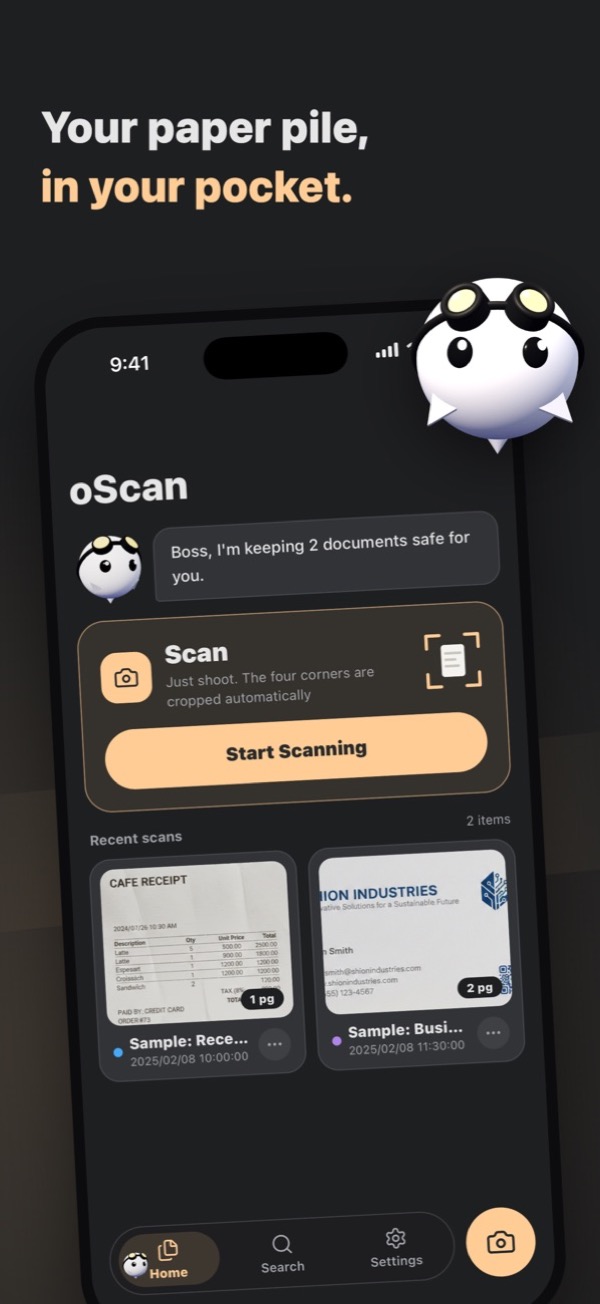
- Open oScan and tap
Start Scanning - Hold your iPhone over the document. It snaps when it finds the corners
- Save after scanning a few pages
- From the share button, choose
Share as PDF. Combine into one PDF, or split into separate files
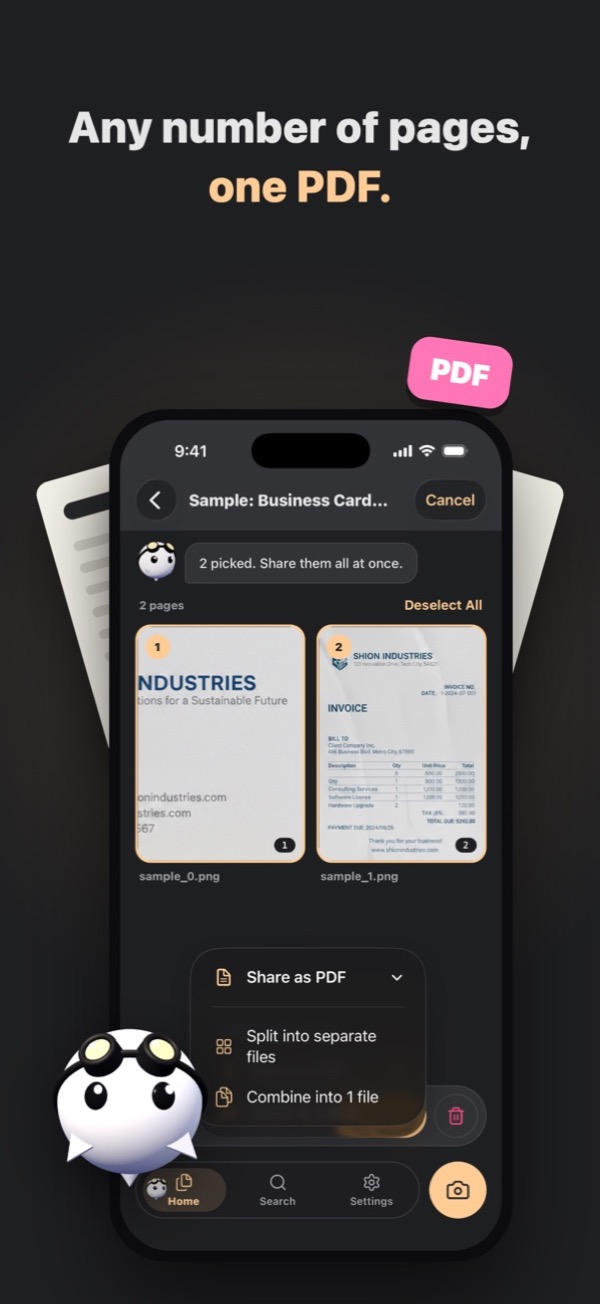
- No limit on how many pages you scan.
- Read the text in a document and copy it.
- Your scans and the text read from them stay on your iPhone. Nothing is sent to a server.
- Free, no sign-up (with ads).
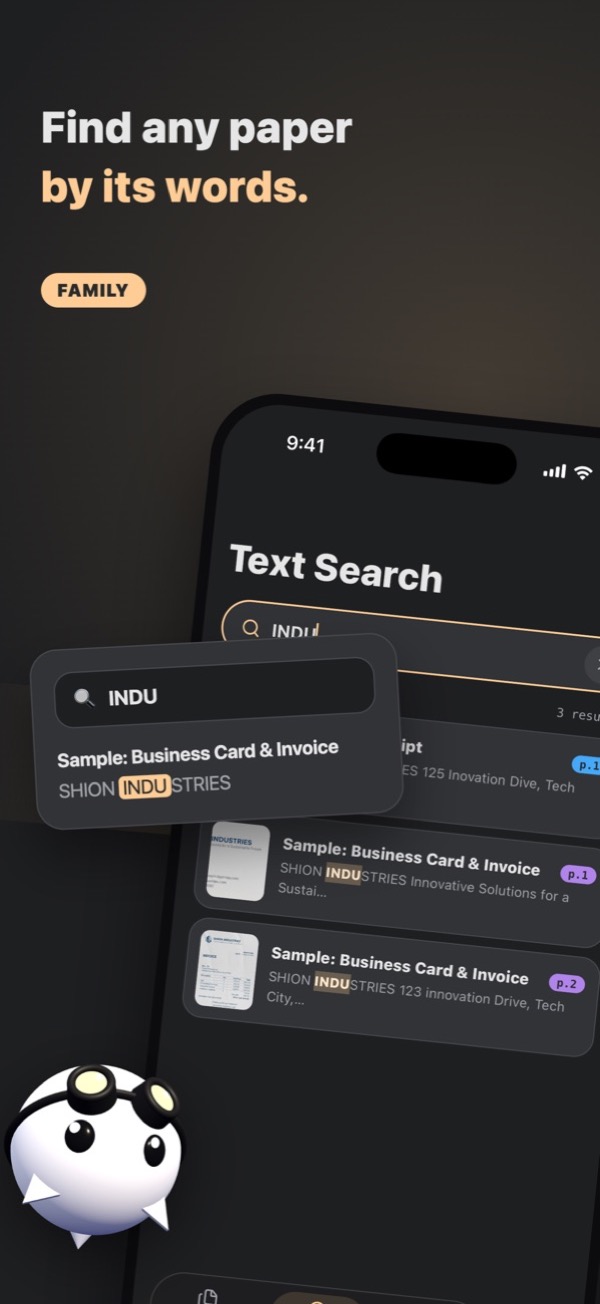
Finding by text makes life easier
As scans pile up, it gets hard to tell which is which. With oScan Family (paid), you can search by the words written inside your documents. Search a company name or "invoice", and the documents with that word show up.
Method 2: No app? Scan in Notes
The Notes app that comes with iPhone can scan documents too.
- Create a new note in Notes
- Tap the paperclip (attach) button and choose
Scan Documents - Hold your iPhone over the document, snap it, and tap
Save
On iOS 17 and earlier, choose Scan Documents from the camera button instead of the paperclip.
The scan goes into the note. To send it as a PDF, open the document in the note and send it from the share button.
Method 3: No app, and you want a PDF file? Use Files
Scan in the Files app and it's saved as a PDF file in any folder you like.
- Open the folder you want in the Files app
- Tap
…at the top right and chooseScan Documents - Hold your iPhone over the document, snap it, and tap
Save
Scan several pages in a row and they become one PDF. Save it to an iCloud Drive folder and you can open it on your computer too.
FAQ
How do I send a scanned PDF by email or chat?
With any method, tap the share button and choose Mail or your messaging app.
Can I scan in the dark?
In the dark, text gets blurry and the corners are harder to find. Scan in a bright spot, on a desk that's a different color from the paper.