How to Extract Audio from a Video on iPhone (MP3 or M4A)
How to pull just the audio out of a video on iPhone. Make an MP3 with an app, or make an M4A with Shortcuts, no app needed.
Posted
You filmed a concert, a recital or yourself playing, and you want just the sound. Here's how to turn an iPhone video into an audio file you can listen to like music.
Only extract audio from videos you filmed yourself or have permission to use. You can't take someone else's work and pass it around.
The short answer
| What you want | Method | Effort | Formats |
|---|---|---|---|
| MP3, or pick a format | Method 1: An app | Easy | MP3 / WAV / M4A and more |
| No app | Method 2: Shortcuts | A little, once | M4A |
MP3 vs. M4A
Both are audio file formats.
- MP3: The most widely used. Plays on almost any device or app.
- M4A: Apple's favorite. At the same size, it sounds a bit better than MP3. Some older devices and apps can't play it.
Sharing with others? MP3. Just listening on your own iPhone? M4A is fine.
Method 1: Make an MP3 with an app (the easiest)
With oConvert from shion.industries, tap Extract audio and pick a video.
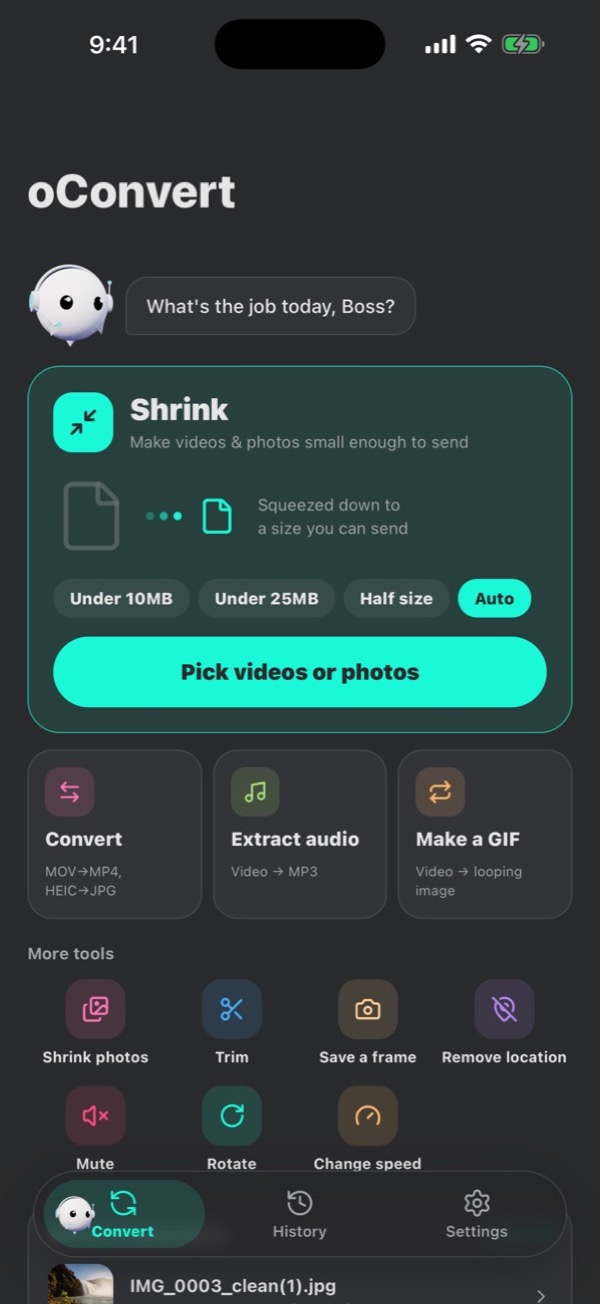
- Choose MP3, WAV, M4A, FLAC, AAC or OGG.
- Everything is converted on your iPhone. Your videos are never sent anywhere.
- Free, no sign-up (with ads).
Method 2: No app? Make an M4A with Shortcuts
You can build an audio extractor in the Shortcuts app that comes with iPhone. The result is an M4A.
- Open Shortcuts and tap
+at the top right - Add
Select Photosand setIncludetoVideosonly - Add
Encode Mediaand turn onAudio Only - Add
Save File - Name it and save
Run the shortcut and pick a video, and it asks where to save. The M4A is saved wherever you choose in the Files app.
FAQ
Where does the audio end up?
With Method 2, it's in the Files app, wherever you chose to save it. It doesn't go into the Music app.
Does the sound quality drop?
M4A and MP3 trim a little information. For normal listening you'll hardly notice. If you want no loss at all, pick WAV or FLAC in oConvert.